- Domains
- DNS Management
- Content Delivery Network
-
Cloud Containers
- Overview
-
Using Containers
- Creating and Managing
- Connecting to a Container
- Swapping the Image
- Domain Aliases
- Environment Variables
- Protected Environment Variables
- Backing Up
- Automatic Updates
- SSL Support
- Adjusting Execution Time Limits
- Upgrading Apache Image
- Renaming a Container
- Port Management
- Caching
- Cloning/Overwriting
- Restoring a Backup
- Production Mode
- Metrics Dashboard
- Accessing supervisord
- Container Deprecation
- SSH / SFTP Users
- Databases
- Volumes
- Custom Images
-
Technical Guides
- Create a NodeJS Container
- Creating a Service Container
- Working with .NET Core Web Containers
- Working with Node.js Web Containers
- Working with Umbraco Web Containers
- Deploying your application with git
- Python Container
- Enable Country-Level blocking in Cloud Containers
- Working with SQL Server Containers
- Working with the SilverStripe Caching folder
- Profiling a site using Xdebug on Cloud Containers
- Working with SilverStripe Containers
- NGINX Proxy for Service Containers
- Tuning PHP OPcache
- Deploying phpList on SiteHost Cloud Containers
- Deploying Mautic on SiteHost Cloud Containers
- Deploying n8n on SiteHost Cloud Containers
- Working with ModSecurity on Apache+PHP containers
- Google Tag Manager
- Low Disk Warnings & Upgrades
- Local Development
- Virtual Servers
- Dedicated Servers
- Private Cloud
- Cloud / Shared Hosting
- Email Hosting
- Monitoring & Bandwidth
- Account & Billing
- Developers
- SSL Certificates
- Networking
- AI Platform
Deploying n8n on SiteHost Cloud Containers
n8n is a visual node-based editor for automation that can be hosted in a Cloud Container, for more information, visit their official documentation page here
The steps below are based on
Creating a Node.js Application Containerarticle as n8n is an application running on NodeJS
Setup the Service Container
The n8n application can be installed on the following:
NodeJSservice container (proxied through aNginx Proxyweb container)- or on a
Nginx + NodeJScontainer
At the time of writing, the image with NodeJS 22 has been tested and is compatible with the current n8n release.
Once provisioned, connect via SSH to the NodeJS service (or Nginx + NodeJS web) container and install n8n with this command:
npm install n8n -gThis installation will take up around 4 GB of disk space so make sure the Cloud Container server has enough storage space.
Files will be installed in /container/application/.npm-global/bin/n8n directory, so update the supervisord configuration to run n8n during container startup then restart the container (from your Control Panel) for changes to take effect:
# /container/config/supervisord.conf

[program:n8n]
environment=HOME=/container/application ; $HOME variable is used by npm for logging and caching
command=/container/application/.npm-global/bin/n8n start
stdout_logfile=/container/logs/supervisor/%(program_name)s-stdout.log
stderr_logfile=/container/logs/supervisor/%(program_name)s-stderr.log
user=www-data
Note that specifying
HOMEin thesupervisord.confis necessary to prevent the container from creating the config under/rootfolder, this will avoid errors such as:Error: EACCES: permission denied, mkdir '/root/.n8n'
Before proceeding to the next step, check the log files to ensure there are no errors with the container, you can do this from:
tail /container/logs/supervisor/n8n-stdout.log
tail /container/logs/supervisor/n8n-stderr.log
Update the proxy configuration
For the NodeJS container, the service will need to be proxied through a web container, so provision the Nginx-Proxy container. To do this, connect to the Nginx Proxy container via SSH, and update the Nginx config file (/container/config/nginx/sites-available/default). If you are using an integrated NodeJS + Nginx container you can edit the Nginx configuration file (/container/config/nginx/sites-available/default). If you have used a custom port in your n8n configuration, you will need to use this port instead of n8n's default 5678. You can find more information about port management on this link.
# Nginx-Proxy container
upstream n8n {
        server NODE_CONTAINER_HOSTNAME:5678;
}
...
    location / {
        proxy_pass http://n8n/;
The NODE_CONTAINER_HOSTNAME can be found within the container's Manage tab in the SiteHost Control Panel.
# Nginx + NodeJS container
upstream n8n {
        server localhost:5678;
}
...
    location / {
        proxy_pass http://n8n/;
After making these changes you will need to restart the Cloud Container.
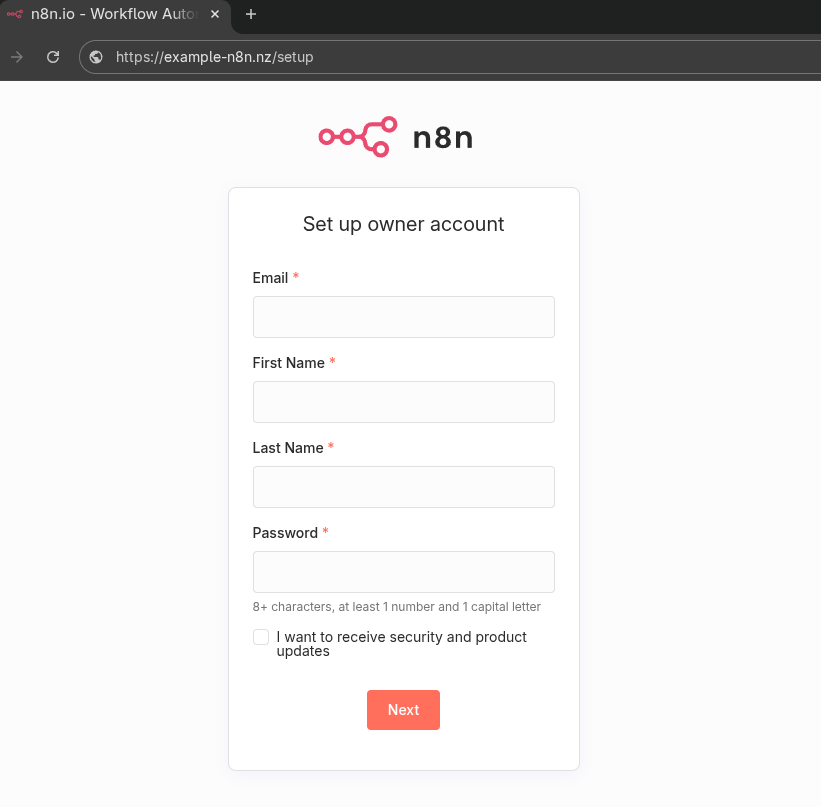
Open a web browser and navigate to your URL, You should now see the n8n setup page: