- Domains
- DNS Management
- Content Delivery Network
-
Cloud Containers
- Overview
-
Using Containers
- Creating and Managing
- Connecting to a Container
- Swapping the Image
- Domain Aliases
- Environment Variables
- Protected Environment Variables
- Backing Up
- Automatic Updates
- SSL Support
- Adjusting Execution Time Limits
- Upgrading Apache Image
- Renaming a Container
- Port Management
- Caching
- Cloning/Overwriting
- Restoring a Backup
- Production Mode
- Metrics Dashboard
- Accessing supervisord
- Container Deprecation
- SSH / SFTP Users
- Databases
- Volumes
- Custom Images
-
Technical Guides
- Create a NodeJS Container
- Creating a Service Container
- Working with .NET Core Web Containers
- Working with Node.js Web Containers
- Working with Umbraco Web Containers
- Deploying your application with git
- Python Container
- Enable Country-Level blocking in Cloud Containers
- Working with SQL Server Containers
- Working with the SilverStripe Caching folder
- Profiling a site using Xdebug on Cloud Containers
- Working with SilverStripe Containers
- NGINX Proxy for Service Containers
- Tuning PHP OPcache
- Deploying phpList on SiteHost Cloud Containers
- Deploying Mautic on SiteHost Cloud Containers
- Deploying n8n on SiteHost Cloud Containers
- Working with ModSecurity on Apache+PHP containers
- Google Tag Manager
- Low Disk Warnings & Upgrades
- Local Development
- Virtual Servers
- Dedicated Servers
- Private Cloud
- Cloud / Shared Hosting
- Email Hosting
- Monitoring & Bandwidth
- Account & Billing
- Developers
- SSL Certificates
- Networking
- AI Platform
Deploying Mautic on SiteHost Cloud Containers
Mautic is an open-source marketing automation platform used for email campaigns, lead tracking, and customer engagement.
More information about Mautic and its requirements can be found in the official documentation: https://www.mautic.org/docs
Creating the Application Container
In your control panel, select the Apache + PHP 8.3 Cloud Container image.
At the time of writing, PHP 8.3 is the recommended and tested version for Mautic 6.
Once the container is created, confirm that SSL is enabled for the domain, as HTTPS is required for secure tracking and authentication features.
For detailed instructions on creating a container, refer to our Knowledge Base article: Creating and Managing a Container
Mautic is a stateful application that relies heavily on database and email reliability. Ensure your database and SMTP services are stable before deploying in production.
PHP Configuration
Mautic requires specific PHP settings to operate correctly.
Edit the container’s php.ini (/container/config/php/php.ini) file and ensure the following values are set:
memory_limit = 512M
max_execution_time = 240
zend.assertions = -1
After making changes, restart the container to apply the new PHP configuration.
Note: Insufficient memory or execution time limits can cause failures during updates, campaign processing, or large contact imports.
Downloading and Deploying Mautic
Access the container via SSH and navigate to the application directory:
cd /container/applicationRemove the existing public directory to prepare a clean web root:
rm -rf publicDownload the official Mautic release (example uses version 6.0.6):
wget https://github.com/mautic/mautic/releases/download/6.0.6/6.0.6.zipExtract the archive and recreate the web root:
unzip 6.0.6.zip -d publicNavigate into the new public directory and install Mautic dependencies using Composer:
cd public
composer install
Once completed, proceed with the web-based installer by accessing your domain in a browser and following the on-screen instructions.
Database Configuration
When creating your Cloud Container, you assign a database name, username, and password. These credentials must be entered during the Mautic installation wizard when prompted.
For the database host, you must use the internal service name of the database container you selected. For example, if you selected MariaDB 10.11, the database host will typically be: mariadb1011
Mautic will automatically create and initialise the required database schema.
For detailed instructions on managing databases, refer to our Knowledge Base article: Managing Databases
Completing the Installation
Once the database setup is complete:
- Create an administrator account
- Review and confirm system requirements
After installation finishes, you will be redirected to the Mautic dashboard.
Configuring Email Sending
Email delivery is a core function of Mautic and must be configured before campaigns can be sent.
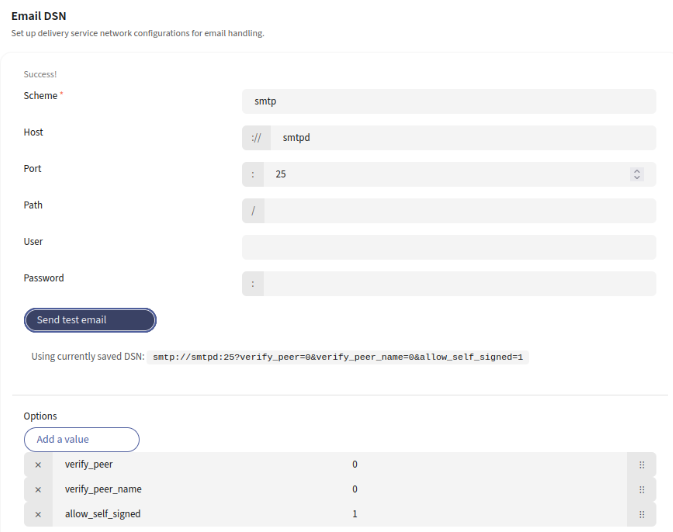
Navigate to Settings → Email Settings and configure SMTP using your provided mail service details. A common internal container configuration may look like:
- Scheme: smtp
- Host: smtpd
- Port: 25
Save the configuration, then validate it by sending a test email.