Tuning PHP OPcache
OPcache is a PHP extension that improves website performance by keeping compiled versions of PHP scripts in memory for immediate execution. Spending less time on compilation frees up PHP worker processes to allow more requests to be served at faster speeds.
While OPcache is enabled in Cloud Containers, the default settings are conservative and may not suit your application or available memory, resulting in fewer cache hits.
This guide will cover how to tune OPcache to increase hits and optimise memory usage.
OPcache Dashboard
For short-term testing purposes, you can install an OPcache Dashboard to your sites which shows OPcache's current status such as which scripts are stored and validated, the cache hit ratio and whether the memory buffer is exhausted.
This is originally from a GitHub project by carlosbuenosvinos under MIT licence but we have adapted it here for recent versions of PHP.
Run the following for PHP 8.0 or higher:
cd /container/application/public/
wget https://static.sitehost.nz/kb/opcache8.php
Use this file instead for older PHP versions:
wget https://static.sitehost.nz/kb/opcache7.phpTry accessing pages on your website to simulate OPcache use. You can view the Dashboard by loading either /opcache7.php or /opcache8.php on your site, depending on the version you are using.
Remove these files as soon as you have the information you need to minimise potential security risks.
Adjusting OPcache settings
Where to tweak OPcache settings
OPcache settings are located in the PHP INI file under /container/config/php/php.ini. Run the command supervisorctl restart php or restart the container to apply the changes.
Several values are commented out by default so you will need to remove the semicolon at the start of each line before updating the values.
Adjustments according to the dashboard values
With the OPcache Dashboard open, you will see a few bars and at the top and data under "Status".
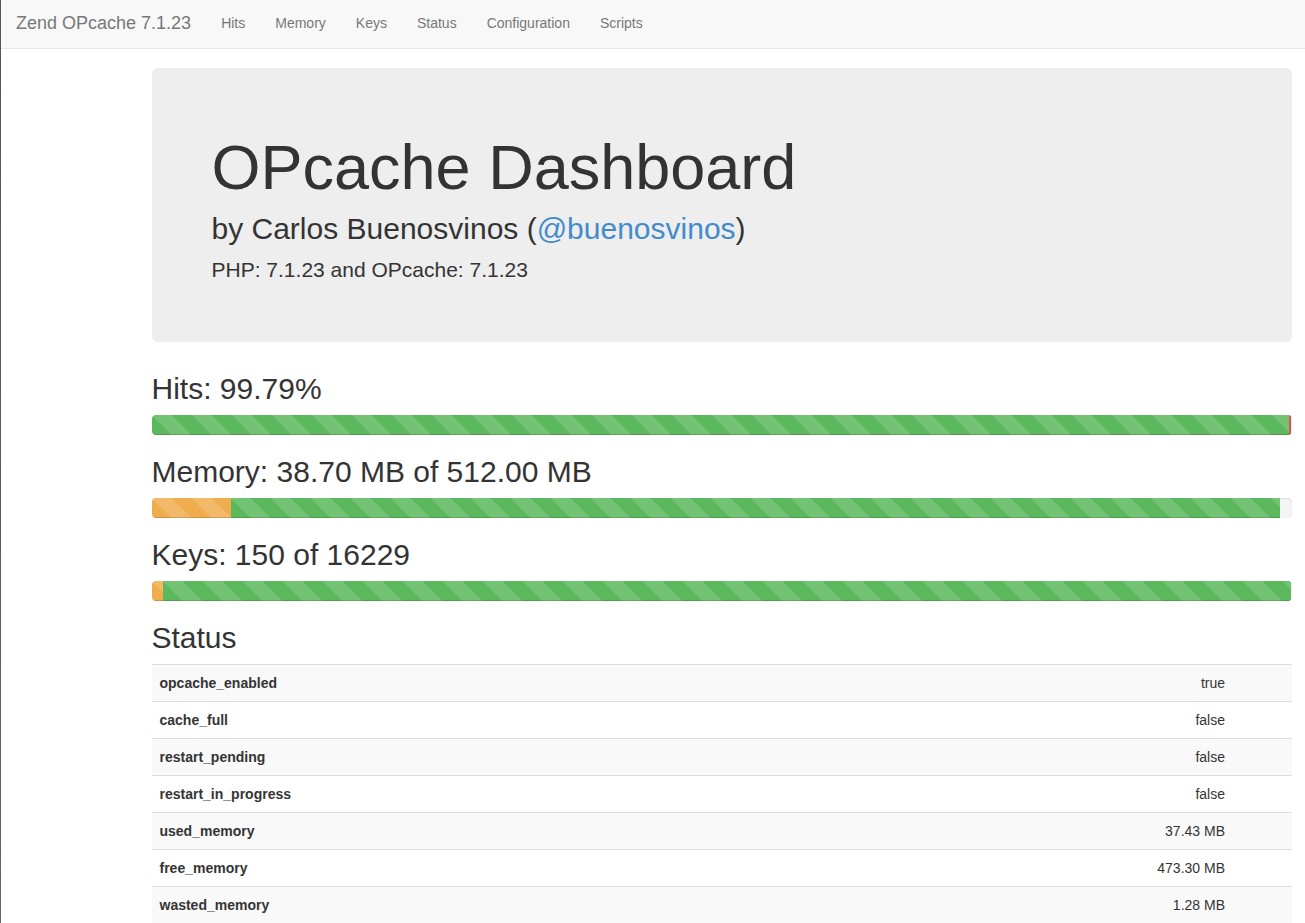
Below is an explanation of some selected settings and statistics reported in these sections along with recommended adjustments to the php.ini file.
Hits
Shows the percentage of requests served via OPcache. A higher percentage indicates the cache is doing its job. Aim for >95% as anything significantly lower suggests frequent cache misses and extra CPU work from recompiles.
Memory
The dashboard usually shows total allotted memory (green), memory used (yellow), and wasted memory (red). Wasted memory represents slots holding outdated or changed scripts that will be reclaimed only after invalidation or restart.
When the memory fills up cache will start to be evicted. Uncomment opcache.memory_consumption in the php.ini file and modify its value to give OPcache more room before it must evict entries.
Under Status, free_memory shows the remaining free RAM in the OPcache block. We would expect this to be in the megabytes. If free_memory is too low or if cache_full is true, allocate more memory
Keys
Each key is one cached PHP script. If the key usage percentage increases above around 90%, you will see increased cache evictions and churn. You can raise opcache.max_accelerated_files to increase the overall number of keys.
Wasted Percentage
Wasted memory is memory left unusable due to invalidated or recompiled scripts in memory. If it climbs too high (above 10-20% as a rule of thumb), you can consider increasing opcache.memory_consumption. For production setups where files are not expected to change, we would suggest setting opcache.validate_timestamps to false so scripts are not automatically invalidated. You will need to flush cache by either rebooting PHP ( you can run supervisorctl restart php or restart the container) or calling opcache_reset() on code deployments.
Buffer size
Under buffer_size, check the used_memory and free_memory values. This represents the interned strings buffer which is a separate part of the overall OPcache memory for copies of strings. If the buffer is nearly exhausted, bump opcache.interned_strings_buffer. 16MB is a good default value for this but you can raise it to 32MB if it is exhausted.
Huge code pages
OPcache places compiled PHP bytecode in several 4KB “pages” in memory. If there are too many pages to keep track of, the processor lookup table can be overwhelmed, requiring more CPU time to find the pages. Enabling opcache.huge_code_pages solves this problem as the pages can be up to 2MB or larger which reduces the overall number of pages and the resulting memory locations to keep track of. This usually results in small latency improvements for high traffic production sites but should only be enabled on a server with memory to spare as the pages are not generally swappable and can overwhelm the OPcache memory if the amount is too small as fragmentation in the page cannot be unallocated.